Album Feature
The album feature allows you to create visually appealing content.
Where can you create albums?
Within a Stream
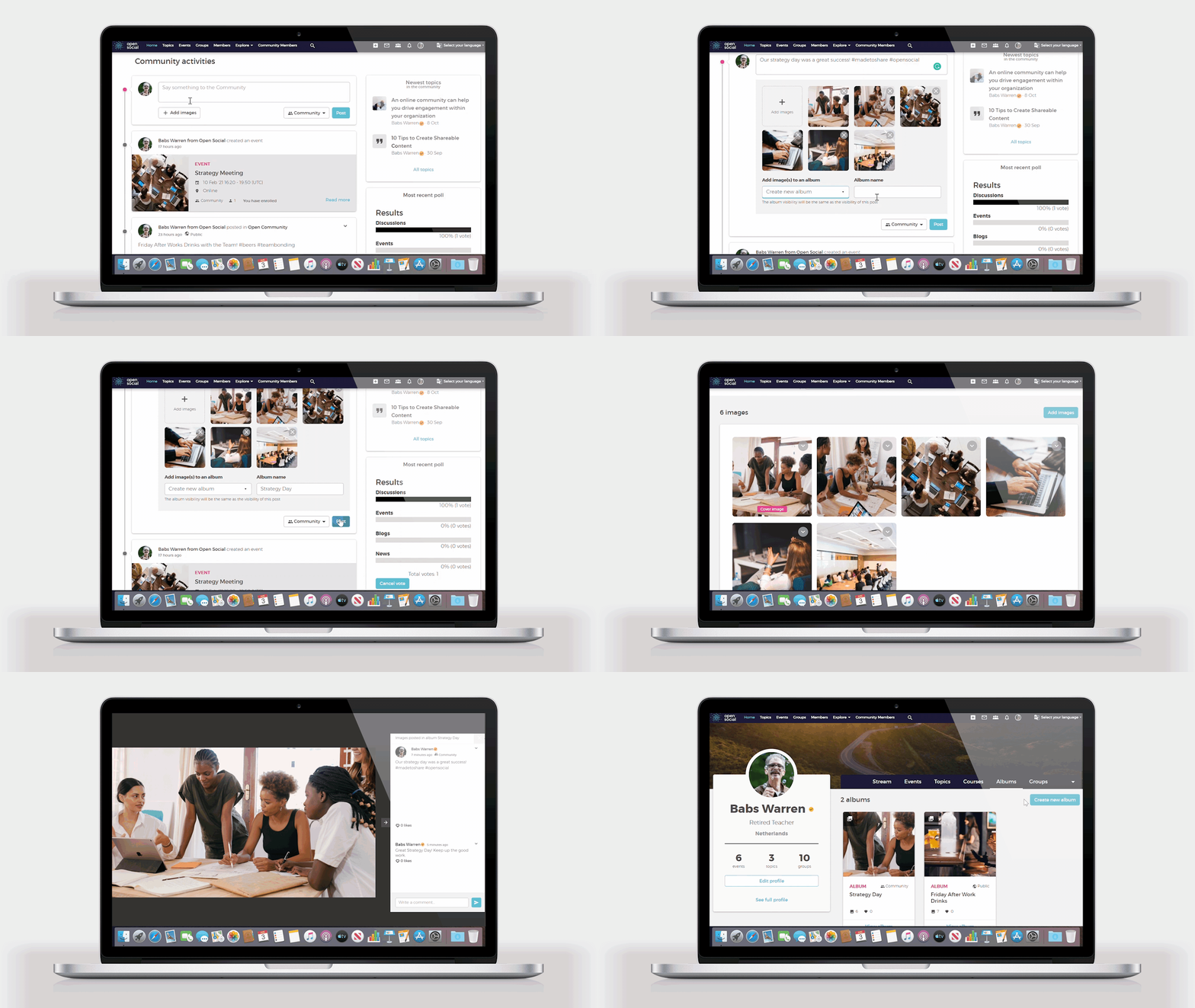
You can directly add an album with multiple images on the activity stream. You simply click add images, select your images and select create an album, set an album name, and voila you have an album posted on the stream.
Within your Profile
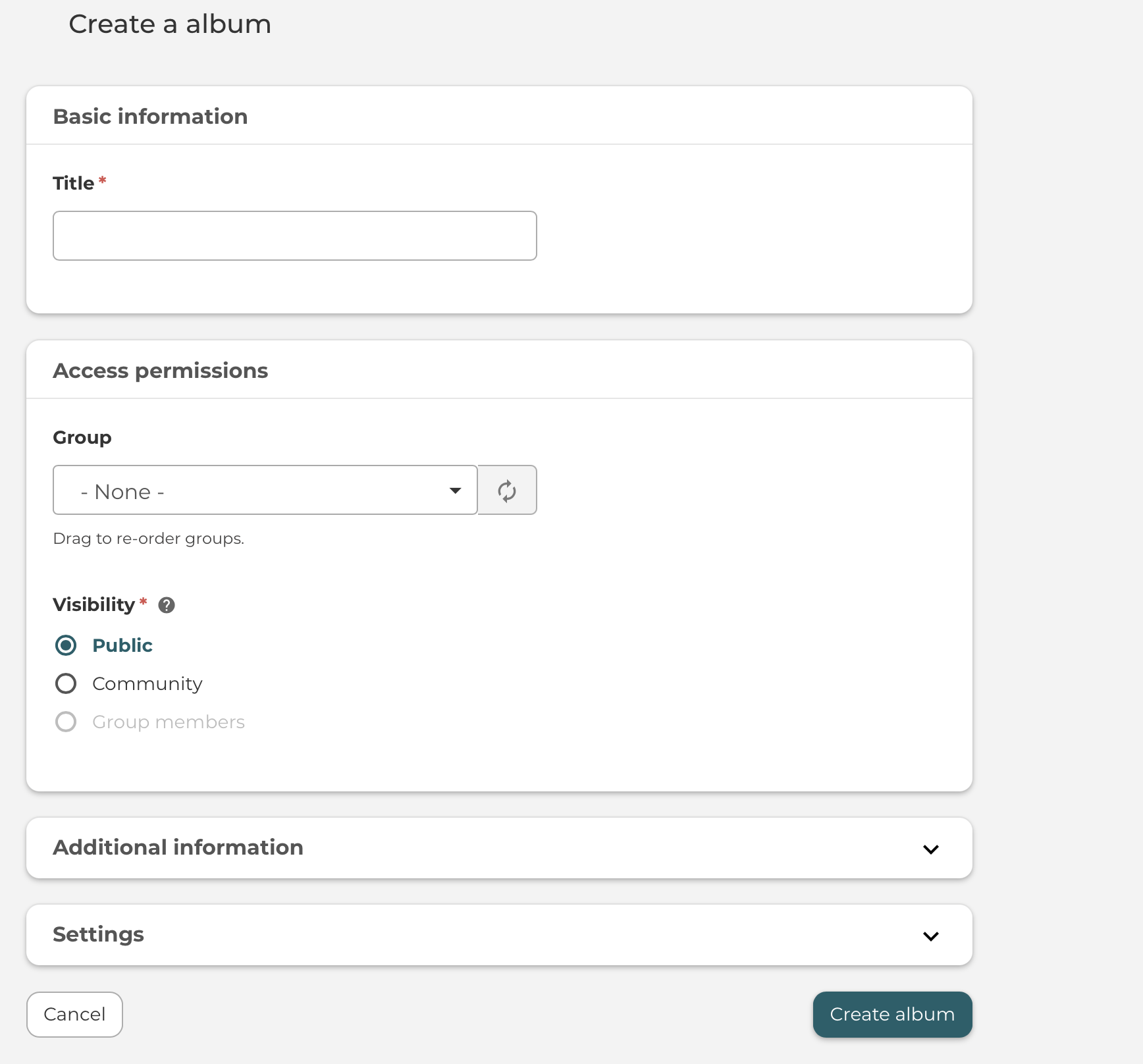
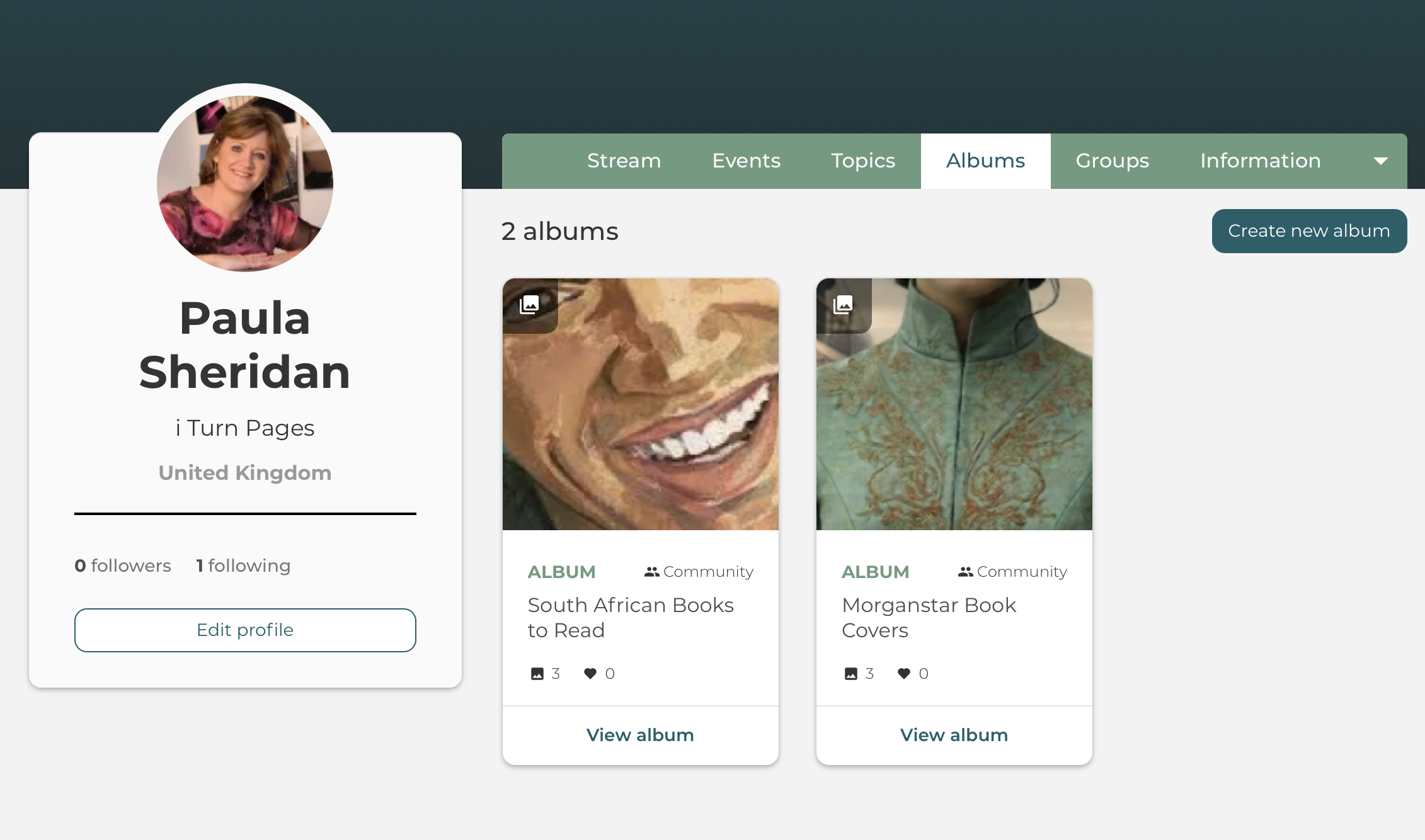
You can also add a new album from the menu, this will ensure you’ll create a personal album. You start by creating the name of the album as well as the visibility rights; whether it should be public, within the community, or within a group. Once you created an album, you can start adding images to the album and save them. You can find all your albums, under your albums in your profile.
Within a Group
As mentioned with your profile, you can create an album and set it under a group in the visibility settings. It works the same way as mentioned above. Once it is saved, you can find it under albums in the group menu.
What can I do with the Album feature?
- In the account dropdown menu, which you see once you click on your profile icon on the top right, you’ll be able to go to all your albums directly using the new “My albums” link.
- You can create albums that are public, within the community, and within a group.
- You can delete an album from the albums you created. However, in order to delete it from the stream, you would have to delete it there as well. If you delete the album, the images will still be in the post but simply not within the album.
- By default, the first image in the album, become the cover image of the album.
- You can add more images even after you saved the album.
- You can also delete an image in an album.
Book Marketing Uses
- World Building Album — settings, landscapes, architecture, era-specific imagery that captures the feel of their fictional world. Readers who love the book share it; new readers discover the book through the imagery.
- Character Inspiration Board — face claims, fashion, mood boards for each main character. Hugely popular in fiction communities, especially fantasy, romance, and historical fiction. Readers love putting a face to a name.
- Book Aesthetic / Mood Board — colour palettes, textures, objects, quotes overlaid on images. The visual identity of the book before a reader even opens it.
- Series Timeline Album — one image per book in a series, showing the world or characters evolving. Drives series discovery.
- Real Locations Album — for historical fiction or contemporary novels set in real places. Readers who visited those places feel an instant connection.
- Cover Evolution Album — original cover, redesigns, foreign editions. Behind-the-scenes content that superfans love.
- Research Album — historical photographs, artefacts, or reference images the author used. Builds credibility and reader trust.
- Cast of Characters Album — one image per character with name and short descriptor as the caption. Doubles as a reader reference guide mid-book.
- ARC / Launch Countdown Album — teaser images released one by one leading up to launch, building anticipation in the community.
- Reader Fan Art Album — authors invite readers to submit fan art or their own photos inspired by the book. Community-generated content that costs the author nothing and drives engagement.
The albums with the highest community engagement potential:
- Character Inspiration,
- World Building, and
- Fan Art
These are the three that readers actively interact with and share, not just passively view.
Author Visual Albums — Build and publish visual albums directly on your ITP author profile: character inspiration boards, world-building galleries, research collections, and launch teasers. Readers who love your books explore your visual world; new readers discover your books through it.