Community users form groups to share information with like-minded members and create events to form relationships on- and offline. When you manage groups and events well, they can provide great added value to your community and help you ease your workload by keeping it active. Learn how here!
Introduction
A Group is great for creating separate, dedicated spaces for users to connect. These could be based on particular themes, experiences, locations or anything you like. Groups are the best way of segmenting your user base and creating smaller communities within the larger platform.
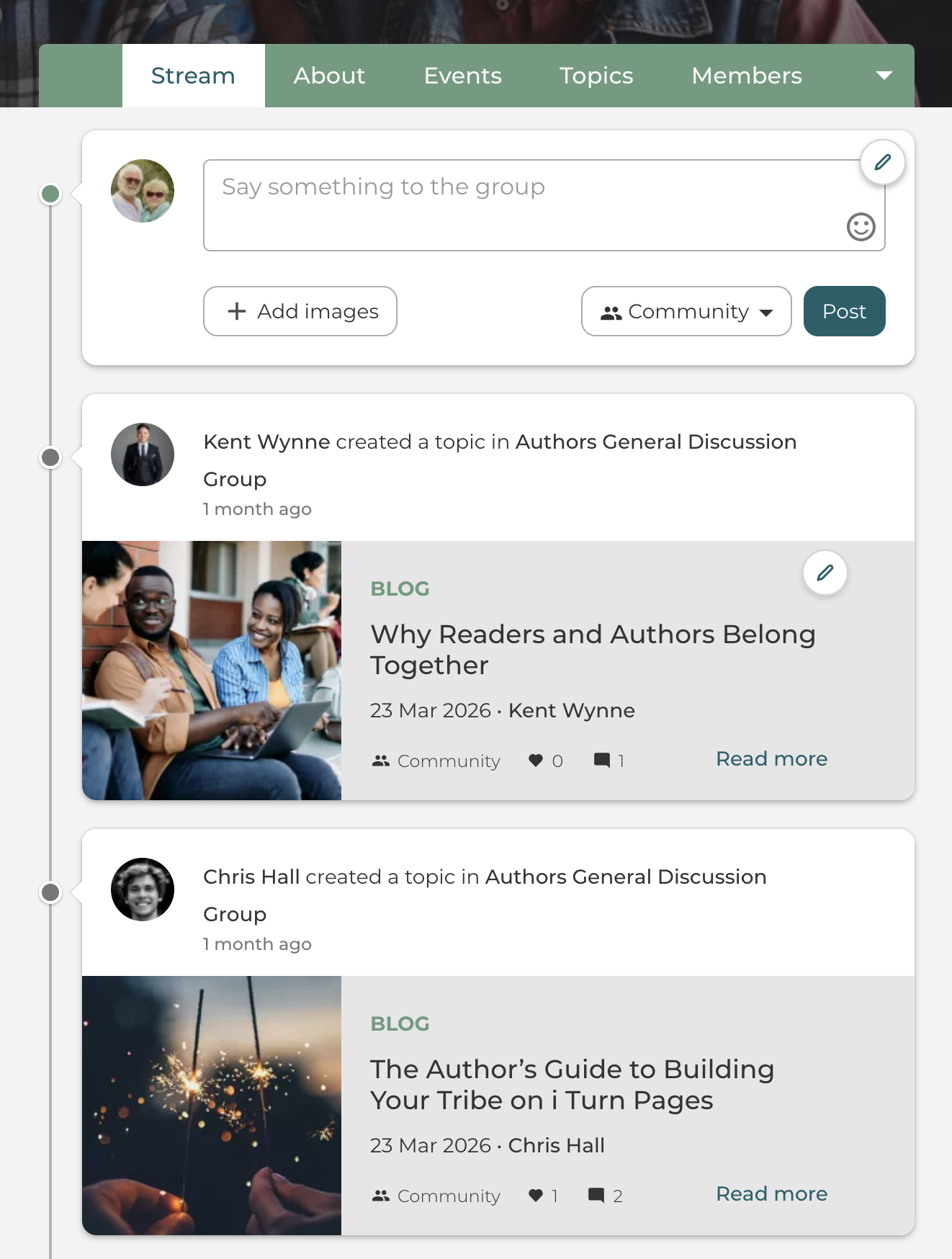
Each group has the same set structure. The following tabs are available within the group:
Stream. Activities in a group, along with a post form for easy engagement
Events. Events organized in a group
Topics. Topics created in a group
Members. Members of a group. If you are a group manager, you can also manage the members of the group.
About. The description of the group and an opportunity to show to both new and existing members what the group is all about.
Discussions and Files & folder are also optional tabs in the group, if these features are enabled in your platform.
When Polls are enabled, they can also be added to a group and appear on the left-hand side
Group visibility
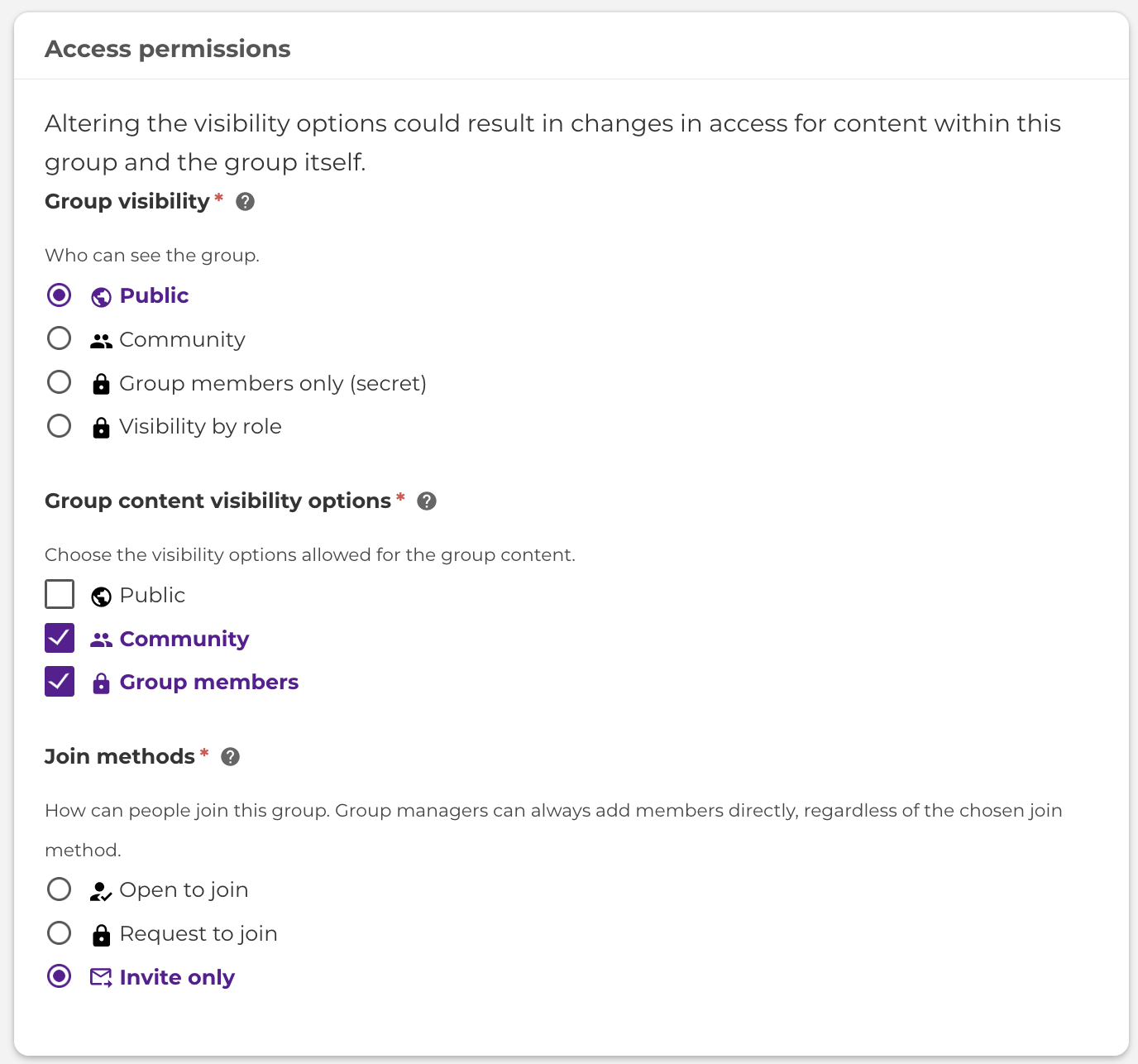
The groups are flexible and allow the group creator and/or group manager to customize the access and visibility settings to the specific group's needs.
The three key options are:
- Group Visibility = Who can see that the group exists and access the about page.
- Group Content Visibility = What are the visibility options for content/events created within the group - you can choose multiple options here
- Join Methods = How can people become group members? This can be managed by the group manager/admins, as well as the platform site and content managers.
For example, the group settings image below shows it is is publicly visible, but the content can be for the group members only or for the community. You decide.
Your community group members can only join the group by invitation.
Group Types & Settings
In the taxonomy settings, you can define the different Group Types which will be available within your community.
As a group manager, you decide if you want your group to be a public group for anyone to see the conversations, or a private closed group, where only those allowed to join will see the group discussions.
Create, edit, and delete groups
- You can add a group by using the ‘+’ button in the header menu when you are logged in.
- You can set the visibility of the group and the content of the group.
- You can choose one of the various join methods - open to join, invite-only, or request to join.
- You can delete a group managed by you at any time.
- Note that deleting a closed group will also delete all the posts, events, and topics created in the closed group.
The Group Manager
When you create a group, you automatically become the group manager. The group managers are also shown to other users on the About Group page.
A group manager can:
- Add users directly to their groups
- Add multiple users at once by separating each user with a comma (',')
- Send invites to users to join the group
- Approve or decline users.
- Change the role of members to a group manager, group admin, or normal group member
- Remove members from a group.
- Email members
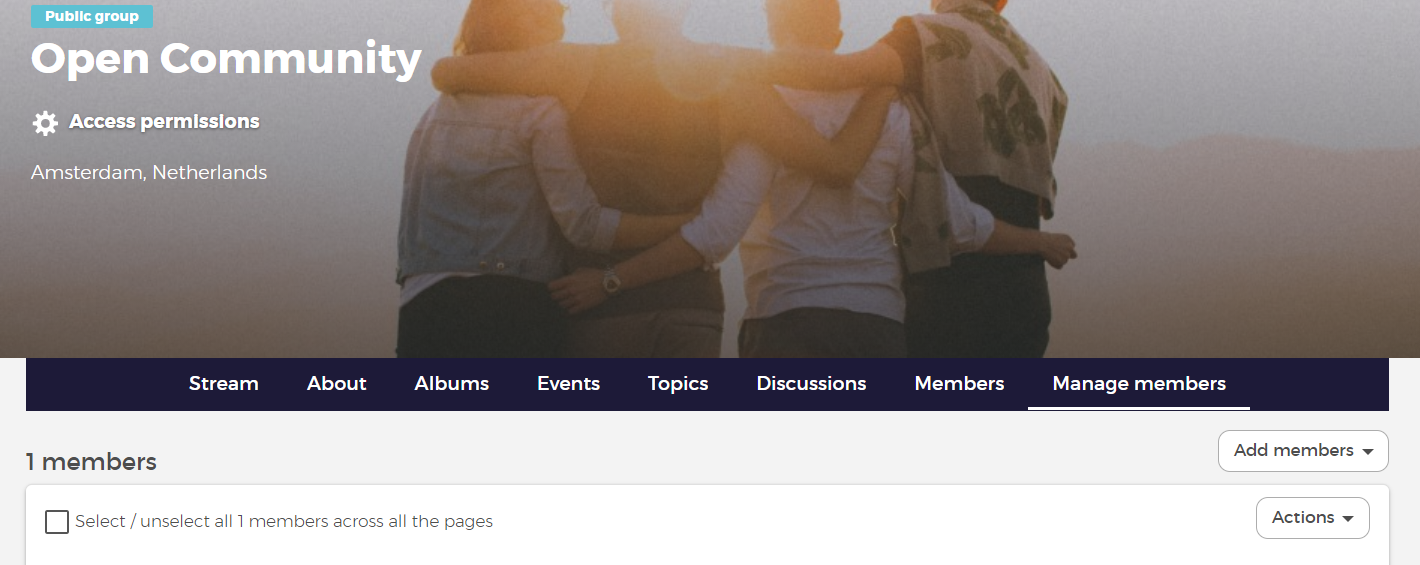
Here is how you can find your group members, via the member tab on your group.