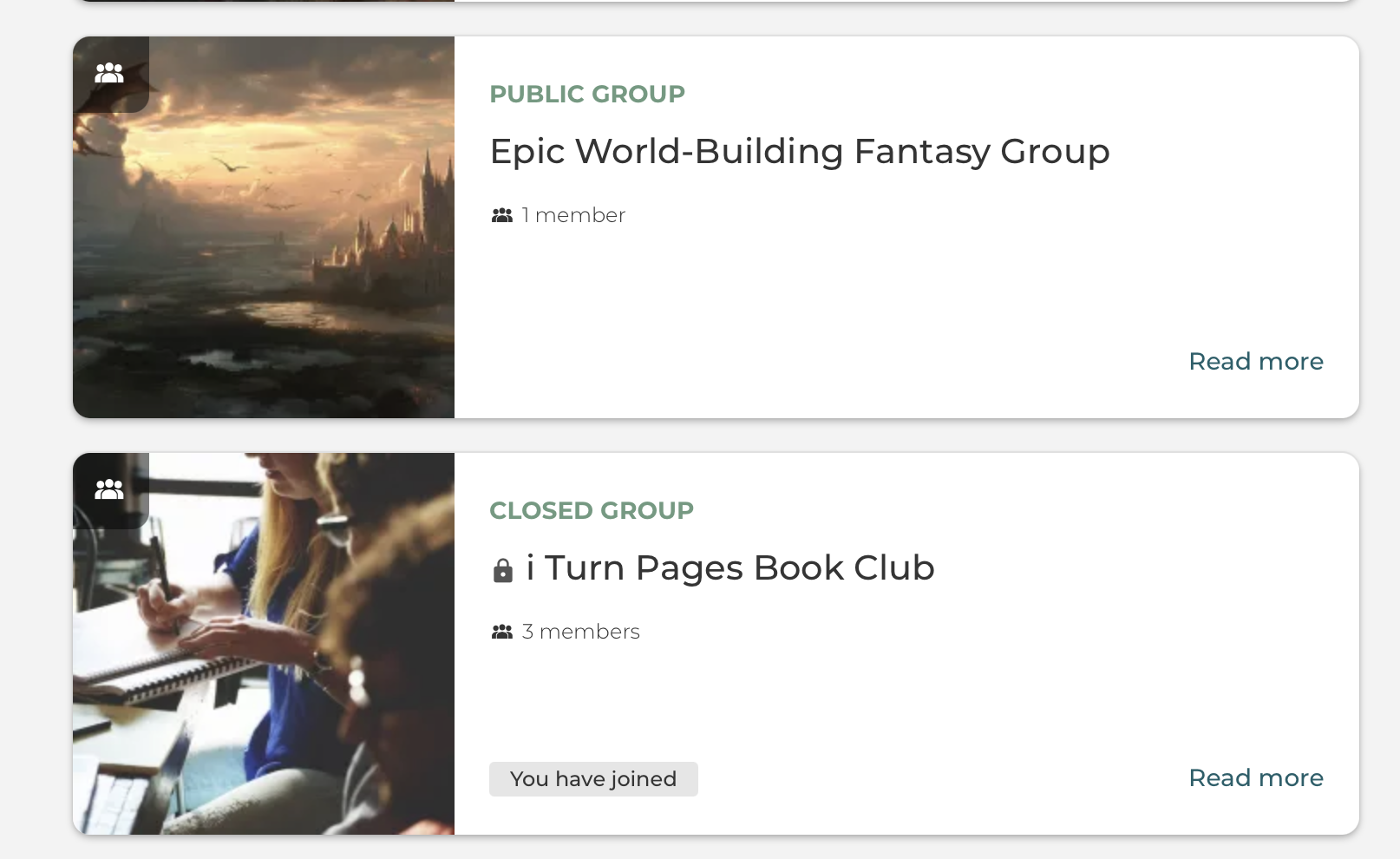
When you create a group or an event, you automatically become the group or event manager. This gives you the extra permissions related to member management in the group or event.
A community is all about information sharing. Set up time boxed discussions or encourage your community users to create topics about the things they are passionate about.
Group permissions
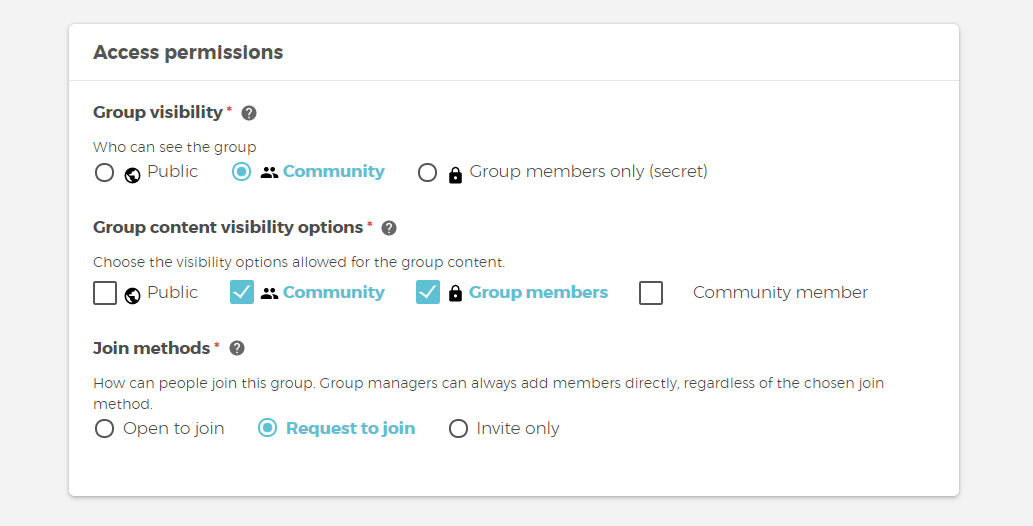
I Turn Pages community members can create new groups, move their own content from one group to another, and to determine who can see the group address. This is done with a set of checkboxes.
Request to Join Group
This feature allows group managers or organizers to decline or accept potential new members to groups.
Group managers can structure their groups in such a way that others can request membership to their groups. But will let the manager decide to approve or decline this request, keeping them in charge of their groups.
Group Admins and managers
When you create a group, you automatically becomes a group admin, which allows you to manage the group on your terms. You can then set the group manager under the manager members tab. The group managers and admins can then grant access to the group.
Users
This allows users who would like to become a member of a group to visit the group page and see a new Request to Join button. This will cause a pop-up that allows them to fill in an optional message or just send the request immediately.
As a result, the group manager or admin will be notified about the incoming requests on the group page as well as through the notification center.
The group manager will have to accept or decline these requests.
After approving the request, the users are directly added. The user will receive a notification once their request is approved, yet not if declined.
I Turn Pages allows for a lot of flexibility with visibility and content flow. Discover how here!
Users can join groups much more easily now! Site managers can enable the ‘Group Quick Join’ per group type to make sure that users can join a group with one click (confirmation step is removed). Site managers can also create CTA links (call-to-action) on landing pages that allow users to join (non-closed) groups in a single click.
Quickly Join a Group
The join group button is found on all groups.
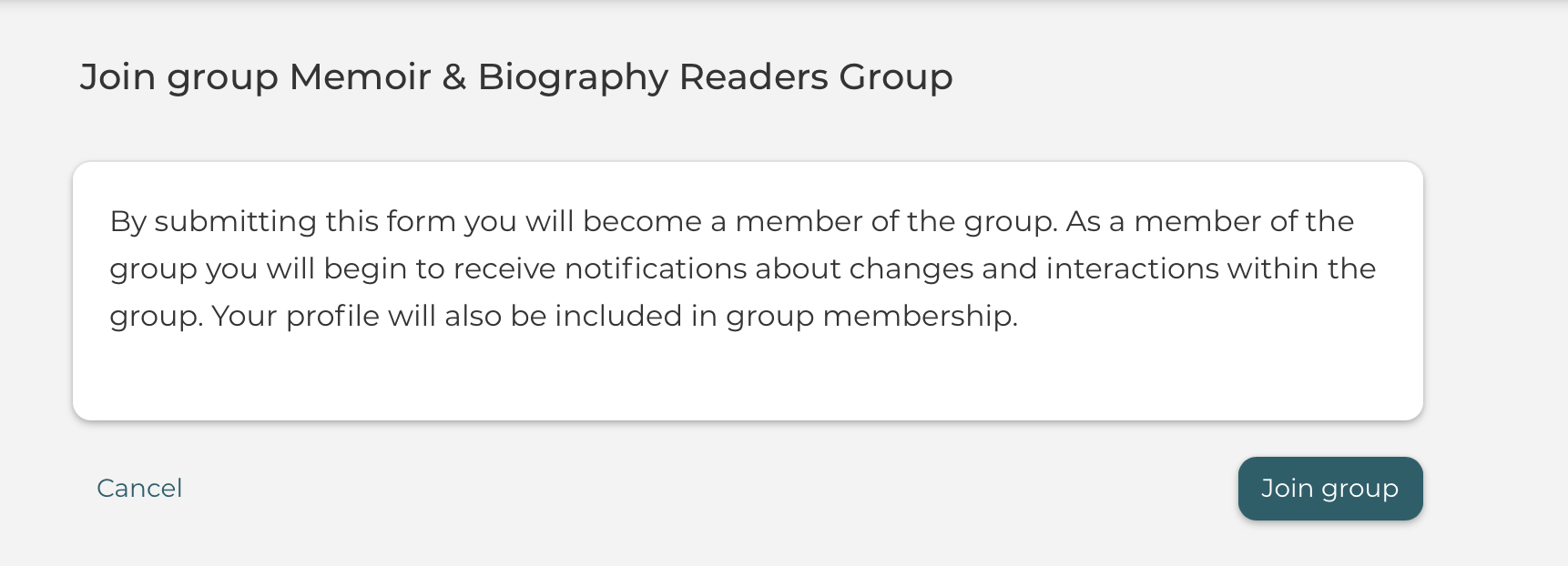
You can join a group directly from the content you are reading.
Depending on the visibility rights of a group, non-members of the group have the option to read the shared content, such as topics.
Interacting with content that belongs to a group you have not joined is easy - without having to leave the content.
Meaning, you can join the group directly from the content you are reading, this initiates and helps users to join the group quickly and directly.
In case of a Flexible Group it is only possible to quickly join a group that has Open to Join selected as joining method.
In case of a Request to Join or Invite Only group you will be redirected to the group page instead.
Reminder About Which Groups You Have Joined
Quickly see which groups you have or have not joined yet.